
Category: Linux

  • Linux Commands Security Professionals Should Know

    Linux Commands Security Professionals Should Know

    User and Group Management

    • passwd – Changes the password of a user account.
      • Example: sudo passwd username
    • useradd – Creates a new user account.
      • Example: sudo useradd -m newuser
    • userdel – Deletes a user account.
      • Example: sudo userdel username
    • usermod – Modifies a user account, such as changing the username or group.
      • Example: sudo usermod -aG sudo username
    • groupadd – Creates a new group.
      • Example: sudo groupadd newgroup
    • groupdel – Deletes a group.
      • Example: sudo groupdel oldgroup
    • groups – Displays the groups a user is a member of.
      • Example: groups username
    • id – Displays user and group information for a specified user.
      • Example: id username

    Package Manager

    • apt-get – A command-line tool to handle packages on Debian-based systems, used to install, remove, or upgrade packages.
      • Example: sudo apt-get install curl
    • apt – A newer, simpler front-end for the apt-get tool for package management on Debian-based systems.
      • Example: sudo apt update
    • yum – Package management tool for RPM-based Linux distributions (like CentOS, Red Hat), used to install, update, or remove packages.
      • Example: sudo yum install curl
    • dnf – A newer package manager for RPM-based systems, replacing yum in many distributions (like Fedora).
      • Example: sudo dnf install curl
    • rpm – Command-line tool to install, remove, and query RPM packages.
      • Example: sudo rpm -ivh package.rpm
    • dpkg – The low-level package manager for Debian-based systems that installs and manages .deb packages.
      • Example: sudo dpkg -i package.deb
    • snap – A package management system for installing snaps (self-contained applications) across various Linux distributions.
      • Example: sudo snap install vlc
    • zypper – Package manager for openSUSE, used to install, update, and manage packages.
      • Example: sudo zypper install curl

    Network Configuration & Monitoring

    • ifconfig – Displays and configures network interfaces (deprecated in favor of ip).
      • Example: ifconfig eth0
    • ip add – Displays IP addresses of network interfaces (part of the ip tool suite).
      • Example: ip addr show
    • ping – Sends ICMP echo requests to test network connectivity.
      • Example: ping 8.8.8.8
    • netstat – Displays network connections, routing tables, and interface statistics (deprecated in favor of ss).
      • Example: netstat -tuln
    • ss – A utility to investigate sockets and network connections, replacing netstat.
      • Example: ss -tuln
    • traceroute – Traces the route packets take to a network host, showing each hop along the way.
      • Example: traceroute google.com
    • ssh – Securely connects to a remote system using the SSH protocol.
      • Example: ssh user@hostname
    • nc – Netcat, a utility for reading/writing network connections, useful for port scanning, listening, and sending data.
      • Example: nc -zv 192.168.1.1 1-1000

    Process Management

    • ps – Displays a snapshot of current running processes.
      • Example: ps aux
    • top – Displays dynamic real-time information about processes.
      • Example: top
    • kill – Sends a signal to terminate a process by its PID (process ID).
      • Example: kill 1337
    • killall – Sends a signal to terminate processes by name.
      • Example: killall firefox
    • pstree – Displays processes in a tree-like format, showing their hierarchy.
      • Example: pstree
    • htop – Interactive version of top, providing a more user-friendly, color-coded view of processes.
      • Example: htop

    File and Directory Management

    • ls – Lists the contents of a directory.
      • Example: ls -l /home/user
    • pwd – Displays the current working directory.
      • Example: pwd
    • cd – Changes the current directory.
      • Example: cd /home/user/Documents
    • mkdir – Creates a new directory.
      • Example: mkdir newdir
    • mdir – Similar to mkdir, but used for creating directories on remote systems (e.g., with FTP).
      • Example: mdir /mnt/remote/dir
    • touch – Creates an empty file or updates the timestamp of an existing file.
      • Example: touch newfile.txt
    • cp – Copies files or directories.
      • Example: cp file1.txt file2.txt
    • mv – Moves or renames files or directories.
      • Example: mv oldname.txt newname.txt
    • rm – Removes files or directories. There are several options for the rm command as well (ie -force (-f), -recursive (-r), -verbose (-v), -interactive (-i))
      • Example: rm file.txt

    File Viewing and Editing

    • cat – Concatenates and displays file content.
      • Example: cat file.txt
    • less – Displays file content one screen at a time, allowing scrolling backward and forward.
      • Example: less file.txt
    • more – Similar to less, but less feature-rich (only allows forward scrolling).
      • Example: more file.txt
    • nano – A simple, text-based text editor.
      • Example: nano file.txt
    • vim – A powerful text editor with advanced features for editing files.
      • Example: vim file.txt
    • gedit – A graphical text editor for GNOME-based systems.
      • Example: gedit file.txt

    System Information

    • uname – Displays system information, such as the kernel version and architecture.
      • Example: uname -a
    • df – Displays disk space usage for all mounted filesystems.
      • Example: df -h
    • du – Displays disk usage for files and directories.
      • Example: du -sh /home/user
    • free – Displays memory usage, including free and used memory.
      • Example: free -h
    • lscpu – Displays detailed information about the CPU architecture.
      • Example: lscpu
    • lshw – Displays detailed hardware configuration information.
      • Example: sudo lshw -short
    • lsblk – Lists information about block devices (e.g., hard drives and partitions).
      • Example: lsblk

    Permission Commands

    • chmod – Changes the file or directory permissions.
      • Example: chmod u+x file.txt
    • chown – Changes the owner and/or group of a file or directory.
      • Example: sudo chown user:group file.txt
    • chgrp – Changes the group ownership of a file or directory.
      • Example: sudo chgrp admin file.txt
    • umask – Sets default file creation permissions.
      • Example: umask 022
    • setfacl – Sets file access control lists for more granular permission control.
      • Example: setfacl -m u:username:rwx file.txt
    • getfacl – Displays the access control list (ACL) of a file or directory.
      • Example: getfacl file.txt
    • chattr – Changes file attributes for advanced file protection (e.g., immutability).
      • Example: sudo chattr +i file.txt
    • ls -l – Lists files and directories with detailed information, including permissions.
      • Example: ls -l file.txt
    Side note for chmod (Click the Arrow)


    The chmod command changes the file’s permissions for the user, group, and others. Permissions can be set using symbolic mode or numeric mode.

    Symbolic Mode: Uses letters to represent file permissions.

    r (read)

    w (write)

    x (execute)

    Numeric Mode: Uses numbers to represent permissions.

    4 = read (r)

    2 = write (w)

    1 = execute (x)

    Sum of numbers for the user, group, and others.

    In numeric mode, you represent permissions using numbers. Each permission is assigned a number:

    4 = read (r)

    2 = write (w)

    1 = execute (x)

    To calculate the numeric value for each permission group (user, group, others), you add the numbers:

    rwx = 4 + 2 + 1 = 7

    rw- = 4 + 2 = 6

    r– = 4

    -wx = 2 + 1 = 3

    –x = 1

  • A Few Cybersecurity Linux Tools to Explore

    A Few Cybersecurity Linux Tools to Explore

    Information Gathering & Reconnaissance

    1. Nmap: A network scanning tool for identifying hosts, open ports, and services. Commonly used for vulnerability assessments.
      Website: nmap.org
    2. Recon-NG: A reconnaissance framework for gathering and processing OSINT data. Modules can automate recon tasks.
      Website: Recon-NG GitHub
    3. theHarvester: Collects emails, subdomains, and hosts using sources like Google, Bing, and Shodan.
      Website: GitHub
    4. DNSRecon: DNS enumeration tool for zone transfers and DNS record collection (MX, SPF, SRV).
      Website: GitHub
    5. Netdiscover: A network scanning tool to identify active IPs in networks, particularly wireless networks.
      Website: Netdiscover SourceForge
    6. Unicornscan: A high-performance asynchronous port scanner capable of scanning large networks.
      Website: Unicornscan GitHub
    7. Masscan: Ultra-fast port scanner that can scan the entire internet within minutes.
      Website: masscan GitHub
    8. P0f: A passive fingerprinting tool to infer OS, uptime, and device information by analyzing traffic.
      Website: P0f GitHub

    Vulnerability Analysis & Exploitation

    1. Nikto: Web server vulnerability scanner that identifies misconfigurations, outdated software, and potential exploits.
      Website: CIRT.net
    2. OpenVAS: Open-source vulnerability scanner for automated network security assessments.
      Website: openvas.org
    3. Metasploit: A penetration testing framework for exploit development and vulnerability validation.
      Website: Rapid7
    4. jSQL Injection: A Java-based SQL injection exploitation tool.
      Website: GitHub
    5. OWASP ZAP: An intercepting proxy for web app security testing and identifying vulnerabilities.
      Website: OWASP ZAP
    6. Burp Suite: A web vulnerability scanner and exploitation platform with intercepting proxy capabilities.
      Website: PortSwigger
    7. SQL Ninja: An SQL injection tool for exploiting database vulnerabilities.
      Website: GitHub
    8. Sqlmap: An open-source tool for automating the detection and exploitation of SQL injection vulnerabilities.
      Website: sqlmap.org

    Wireless & Network Attacks

    1. Aircrack-ng: A suite of tools for Wi-Fi network security assessment, focusing on cracking WEP and WPA-PSK keys.
      Website: aircrack-ng.org
    2. Kismet: Wireless network detector and packet sniffer, useful for Wi-Fi reconnaissance.
      Website: kismetwireless.net
    3. Reaver: Exploits vulnerabilities in WPS to retrieve WPA/WPA2 passwords.
      Website: Reaver GitHub
    4. Wireshark: A powerful packet analyzer for network troubleshooting and analysis.
      Website: wireshark.org
    5. Ettercap: A suite for network sniffing and man-in-the-middle attacks, particularly for ARP poisoning.
      Website: ettercap GitHub
    6. PixieWPS: A tool to exploit WPS vulnerabilities via offline brute-force attacks.
      Website: PixieWPS GitHub
    7. Wifite: Automates attacks on Wi-Fi networks, including cracking WPA/2 and WEP keys.
      Website: GitHub
    8. Netcat: A versatile networking utility for debugging, backdoors, and transferring files.
      Website: Netcat Guide

    Forensics & Post-Exploitation

    1. Autopsy: A digital forensics platform for analyzing and recovering deleted files, email parsing, and more.
      Website: Autopsy.com
    2. Foremost: A file recovery tool for carving out files from disk images and raw data.
      Website: Foremost GitHub
    3. Mimikatz: A tool for credential dumping and Windows security testing.
      Website: GitHub
    4. PowerShell Empire: A post-exploitation framework leveraging PowerShell for remote access and persistence.
      Website: Empire Project
    5. Shellter: A tool for obfuscating and injecting payloads into Windows executables.
      Website: Shellter GitHub
    6. PowerSploit: A post-exploitation toolkit for executing PowerShell scripts on compromised systems.
      Website: PowerSploit GitHub
    7. Memdump: Captures live memory for forensic analysis.
      Website: GitHub

    Password & Hash Attacks

    1. Hydra: A parallelized login cracker supporting numerous protocols.
      Website: Hydra GitHub
    2. Rainbowcrack: Cracks hashes using precomputed rainbow tables.
      Website: Project
    3. John the Ripper: A fast password cracker supporting many hash types.
      Website: John the Ripper
    4. Crunch: A wordlist generator for brute-force attacks.
      Website: Crunch GitHub
    5. Hashcat: A GPU-accelerated password recovery tool.
      Website: hashcat.net
    6. Medusa: A parallelized, modular brute-forcer for password cracking.
      Website: GitHub
    7. Patator: A brute-forcing tool supporting many protocols and methods.
      Website: GitHub
    8. CeWL: Generates custom wordlists for brute-force attacks based on target website content.
      Website: CeWL GitHub

    Malware Analysis, Vulnerability Research, & Incident Response

    1. Ghidra: Reverse engineering tool for analyzing binaries and decompiling code.
      Website: ghidra-sre.org
    2. Radare2: An open-source framework for binary analysis and reverse engineering.
      Website: radare.org
    3. OllyDbg: A debugger for analyzing and manipulating executables.
      Website: OllyDbg
    4. DynamoRIO: A dynamic binary instrumentation framework.
      Website: dynamorio.org
    5. Cuckoo Sandbox: An automated malware analysis platform.
      Website: cuckoosandbox.org
    6. Volatility: A memory forensics tool for analyzing RAM dumps.
      Website: Volatility Foundation
    7. Binwalk: Firmware analysis tool for Website: Binwalk

  • Privacy Forward Operating Systems

    Privacy Forward Operating Systems

    Imagine you’re someone who wants to use the internet without others being able to easily see what you’re doing online. You also want to keep your personal information safe from hackers and prying eyes. That’s where operating systems like Tails and Whonix come in.

    Tails:

    Tails is like a special tool you can use when you want to browse the internet secretly. It’s designed to keep your online activities private and your identity hidden. When you use Tails, it’s kind of like wearing an invisible cloak while surfing the web. Nobody can easily know who you are or what websites you’re visiting.

    One cool thing about Tails is that you don’t need to install it on your computer. You can just put it on a USB stick or a DVD and use it on any computer. When you’re done, you take out the USB stick or DVD, and it’s like you were never there. It’s great for using public computers without leaving a trace.

    Tails Features

    • Anonymous Browsing: Tails routes your internet traffic through the Tor network by default, ensuring that your online activities remain anonymous and your IP address is concealed.
    • Live Operating System: Tails is designed to be a live operating system, meaning it can be run from a USB drive or DVD without the need for installation. This helps to prevent traces on the host system.
    • Data Encryption: Tails includes built-in tools for encrypting your files and communications, enhancing the privacy of your sensitive information.
    • Amnesic Design: Tails is designed to leave no trace of your activities on the computer you’re using. It automatically clears memory and wipes temporary data when you shut down.
    • Secure Communication: Tails comes with pre-configured communication tools like email clients and instant messengers that are configured to work securely with the Tor network.
    • Leak Prevention: Tails is configured to block non-Tor traffic, preventing accidental leaks that could compromise your privacy.
    • Access to Tor Services: Tails allows access to .onion websites, which are part of the Tor hidden services network, further enhancing anonymity and privacy.

    Whonix:

    Whonix is like having your own secret tunnel to the internet. It’s a bit more complex, but it’s also very secure. Whonix works by putting your online activities in a special box that’s really hard for anyone to peek into. It’s like putting your browsing in a safe room, away from the rest of your computer.

    Whonix also helps you use something called Tor, which is like a network that bounces your internet connection around the world, making it really hard for anyone to figure out where you’re really located. It’s like using a bunch of secret passages to get around.

    Whonix Features

    • Isolated Workstations: Whonix operates as a pair of virtual machines—one for your actual activities and another (the “Gateway”) for routing traffic through Tor. This isolation helps prevent leaks and enhances privacy.
    • Leak Protection: Whonix is designed to ensure that all internet traffic goes through the Tor network. It’s much harder for your real IP address to leak in Whonix due to its two-VM structure.
    • Security-Focused: Whonix is built with a strong focus on security. It’s designed to minimize the attack surface and reduce the risk of various security vulnerabilities.
    • Whonix Gateway: The Gateway VM routes all network traffic through Tor, providing an additional layer of anonymity and preventing accidental use of non-Tor traffic.
    • Application Isolation: All applications on Whonix are forced to use Tor, making it extremely difficult for any application to bypass the anonymizing network.
    • Protected Against Malware: Whonix’s design ensures that malware running in the Workstation VM is isolated from the Gateway, preventing it from compromising your anonymity.
    • Encrypted Communication: Whonix is designed to work with encrypted communication tools, helping you maintain secure and private conversations.

    So, which one should you choose? Well, it depends on what you want to do. If you just want to quickly use a secret browsing mode on any computer, Tails is great. If you’re more serious about staying hidden and you’re okay with a bit more complexity, Whonix might be better.

    Remember, both Tails and Whonix are like special tools for staying private online. Depending on what you’re comfortable with and what you’re trying to do, one of them could be a better fit for you. It’s like choosing between wearing an invisible cloak (Tails) or having your own secret tunnel (Whonix) while exploring the internet!

  • Installing Kali Linux as Proxmox Container

    Installing Kali Linux as Proxmox Container

    Obtaining the Latest Kali Image

    When it comes to getting the latest Kali image, follow these steps:

    Navigate to the Image Source – First, head over to the official Kali Linux images repository at https://images.linuxcontainers.org/images/kali/current/amd64/default/.

    Select the Current Version Folder – Within the repository, locate and click on the folder that corresponds to the current version. For instance, I clicked on the folder labeled “20230414 17:56.”

    Find the Root Filesystem – Inside this version directory, you’ll spot the “rootfs.tar.xz” file. Right-click on this file to copy its link.

    Setting Up Proxmox for the Kali Container

    Now, let’s move on to configuring Proxmox for your Kali container:

    Log In to Proxmox – Log in to your Proxmox interface.

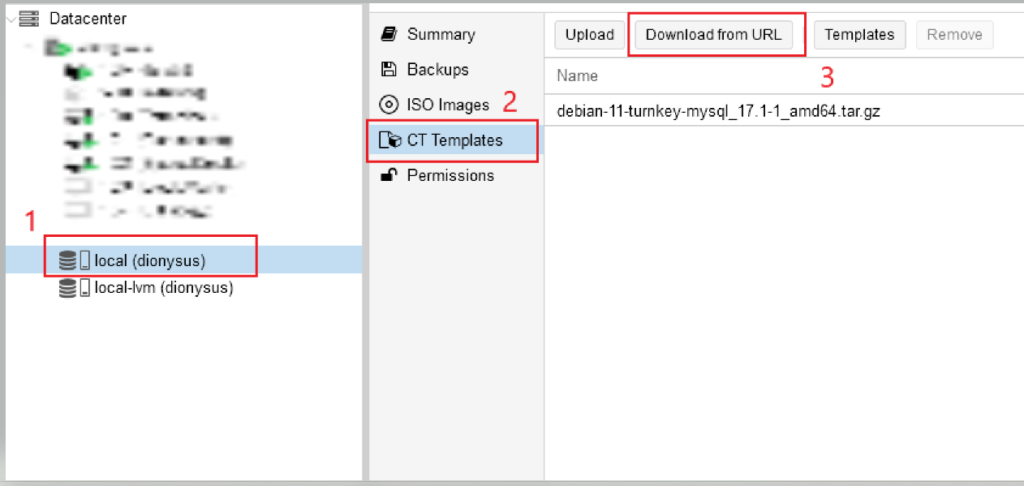
    Navigate to CT Templates – On the left-hand side, select your Node, then navigate to “CT Templates.”

    Download from URL – Look for the “Download from URL” option and click on it.

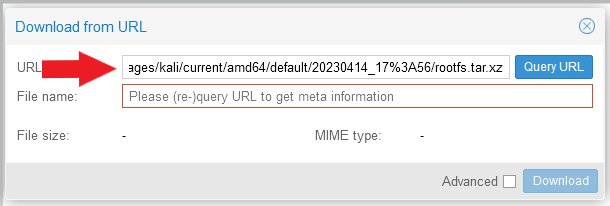
    Paste the Copied URL – In the window that appears, paste the previously copied URL into the URL box. Click on “Query URL” and then “Download.”

    Create a Container – Once the download is complete, it’s time to create your container:

    • Click on “Create CT” from the top-right corner of the Proxmox interface.

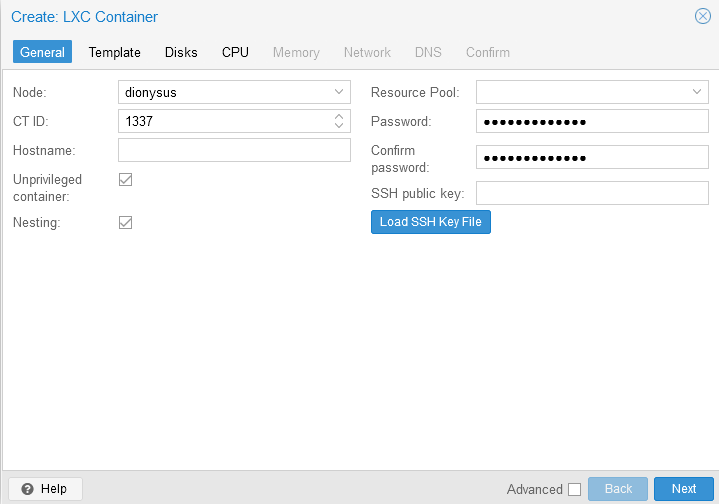
    Configure Container Settings – Configure your container settings as follows:

    • Assign an ID and Password.
    • Click “Next.”

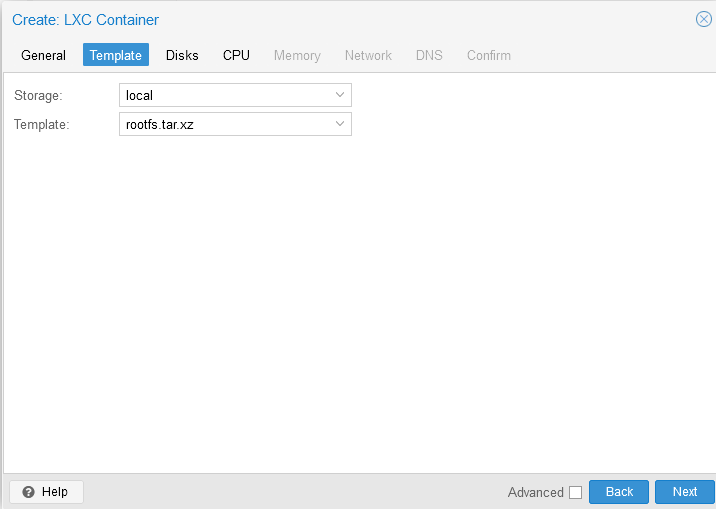
    Select the Template

    On the template selection screen, choose the recently downloaded file (“rootfs.tar.xz”). Note that you’re creating a template that includes the root filesystem.

    • Click “Next.”

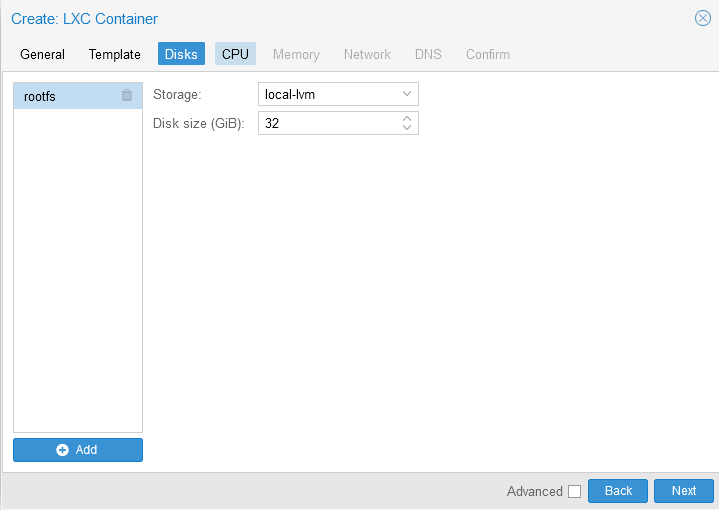
    Allocate Storage – Allocate storage space for your container. I opted for 32GB.

    • Click “Next.”

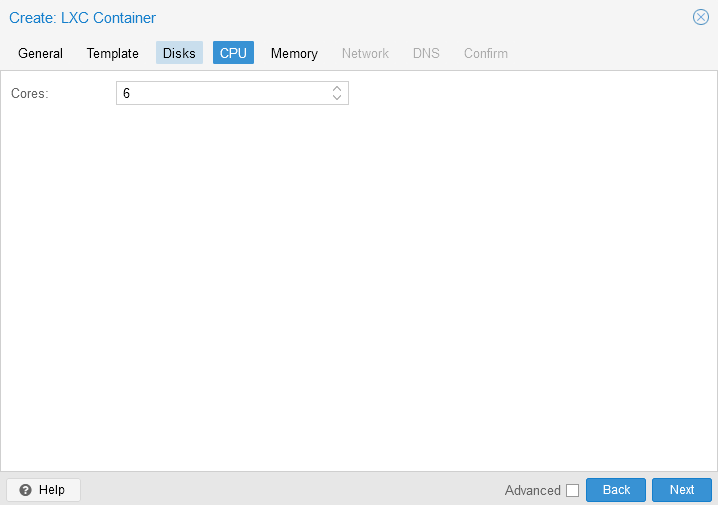
    Assign CPU Cores – Assign CPU cores to your container. I chose 6 cores.

    • Click “Next.”

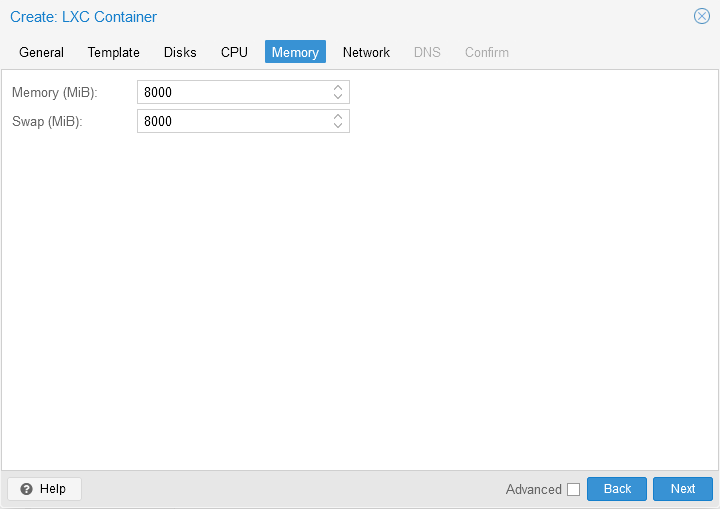
    Allocate RAM – Allocate RAM to your container. I allocated 8GB.

    • Click “Next.”

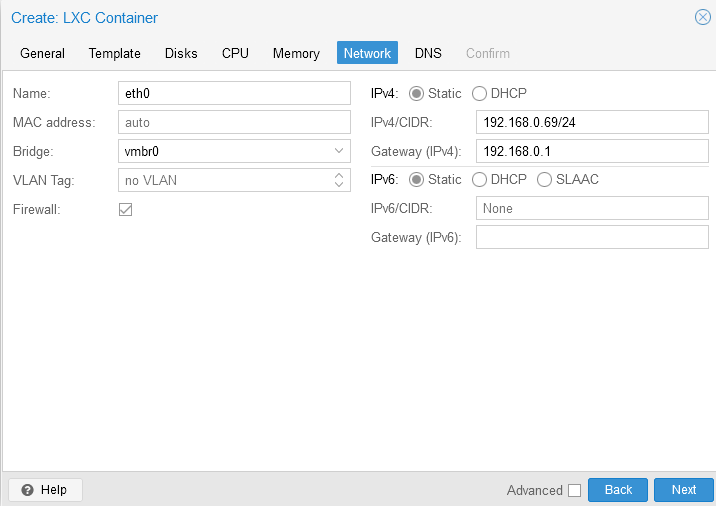
    Set IP Address – On the next screen, assign a static IP address to your container, or leave it dynamic—it’s up to you.

    • Click “Next.”

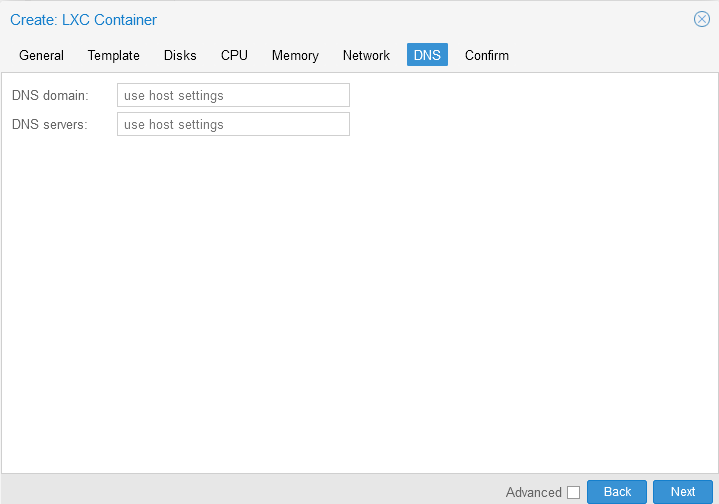
    Configure DNS – For DNS settings, we’ll let the container get its DNS from the host.

    • Click “Next.”

    Start After Creation – On the following screen, make sure to check “Start after created” at the bottom-left corner.

    • Click “Finish.”

    Sources:

    https://www.youtube.com/watch?v=2WjDTUNa-W0

    https://www.kali.org/docs/containers/kalilinux-lxc-images/#overview