Blog

  • Installing Kali Linux as Proxmox Container

    Installing Kali Linux as Proxmox Container

    Obtaining the Latest Kali Image

    When it comes to getting the latest Kali image, follow these steps:

    Navigate to the Image Source – First, head over to the official Kali Linux images repository at https://images.linuxcontainers.org/images/kali/current/amd64/default/.

    Select the Current Version Folder – Within the repository, locate and click on the folder that corresponds to the current version. For instance, I clicked on the folder labeled “20230414 17:56.”

    Find the Root Filesystem – Inside this version directory, you’ll spot the “rootfs.tar.xz” file. Right-click on this file to copy its link.

    Setting Up Proxmox for the Kali Container

    Now, let’s move on to configuring Proxmox for your Kali container:

    Log In to Proxmox – Log in to your Proxmox interface.

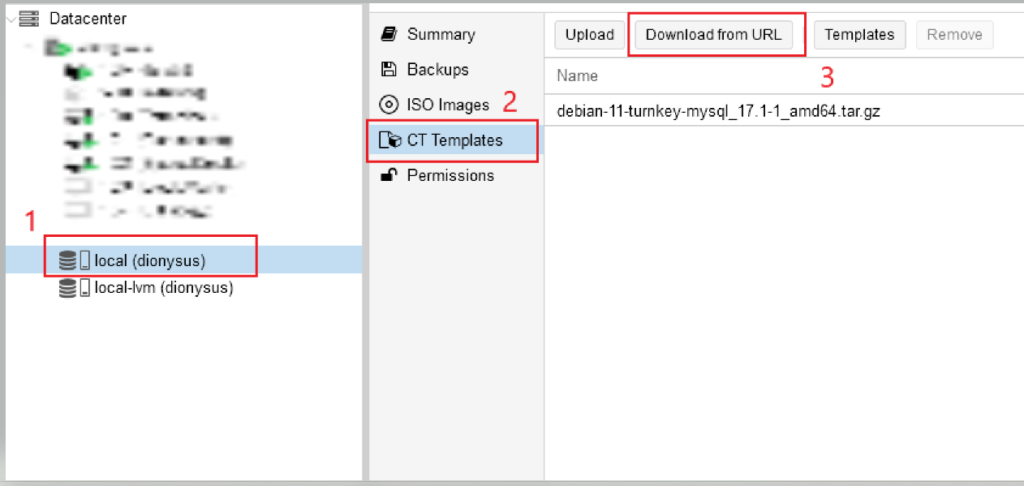
    Navigate to CT Templates – On the left-hand side, select your Node, then navigate to “CT Templates.”

    Download from URL – Look for the “Download from URL” option and click on it.

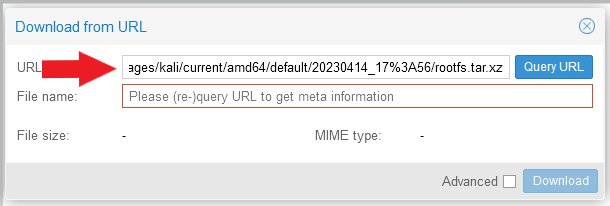
    Paste the Copied URL – In the window that appears, paste the previously copied URL into the URL box. Click on “Query URL” and then “Download.”

    Create a Container – Once the download is complete, it’s time to create your container:

    • Click on “Create CT” from the top-right corner of the Proxmox interface.

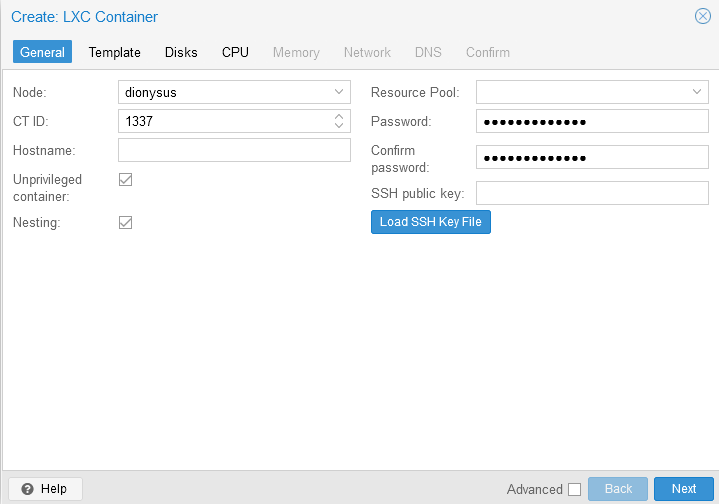
    Configure Container Settings – Configure your container settings as follows:

    • Assign an ID and Password.
    • Click “Next.”

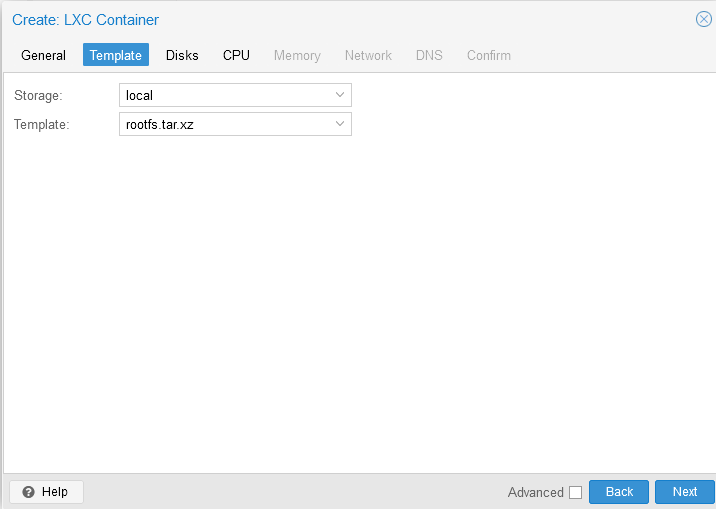
    Select the Template

    On the template selection screen, choose the recently downloaded file (“rootfs.tar.xz”). Note that you’re creating a template that includes the root filesystem.

    • Click “Next.”

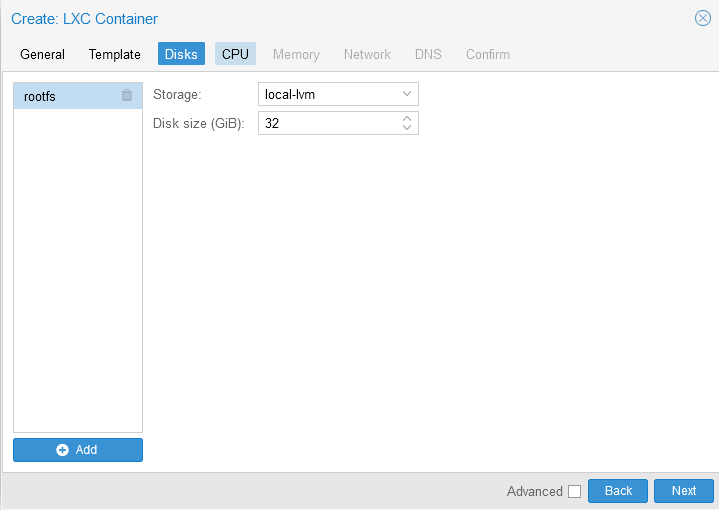
    Allocate Storage – Allocate storage space for your container. I opted for 32GB.

    • Click “Next.”

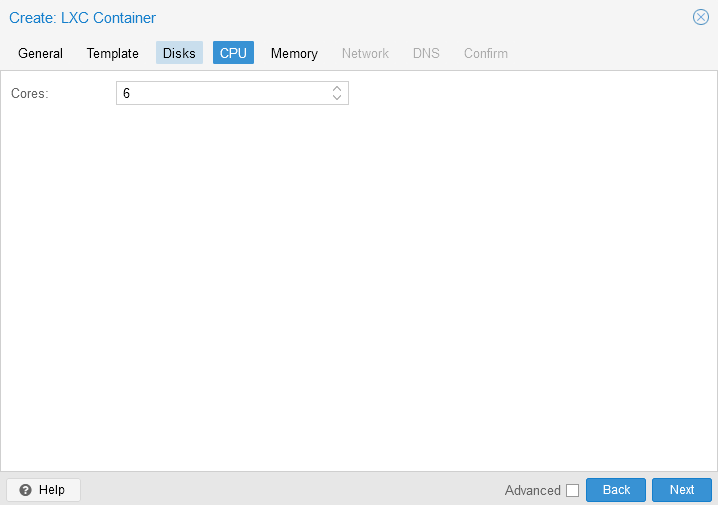
    Assign CPU Cores – Assign CPU cores to your container. I chose 6 cores.

    • Click “Next.”

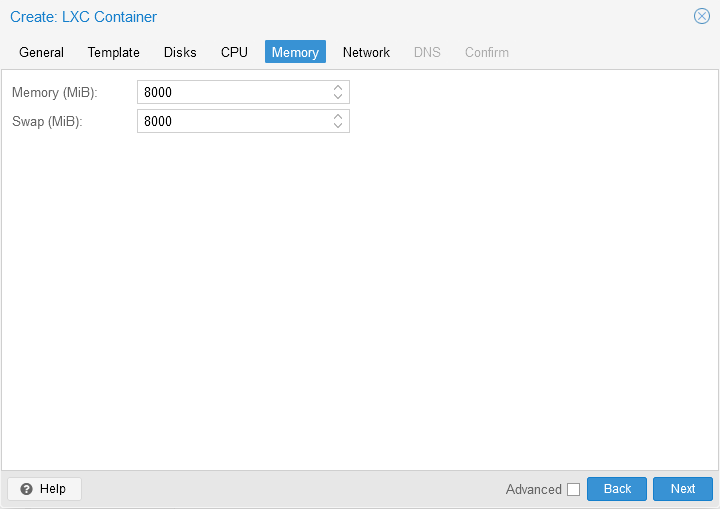
    Allocate RAM – Allocate RAM to your container. I allocated 8GB.

    • Click “Next.”

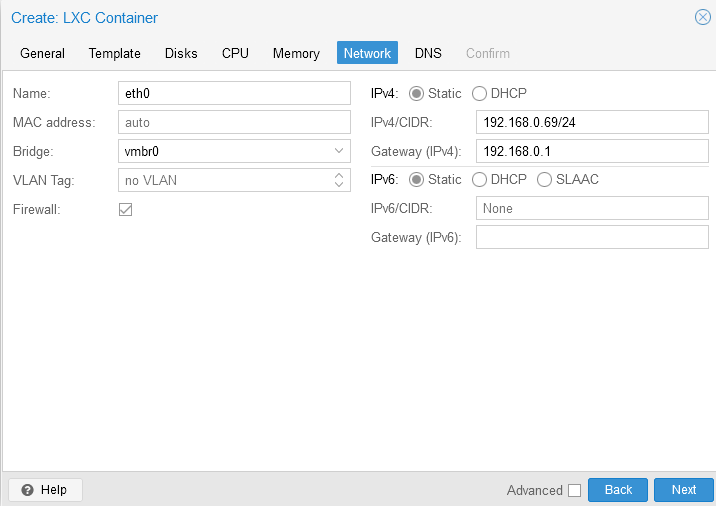
    Set IP Address – On the next screen, assign a static IP address to your container, or leave it dynamic—it’s up to you.

    • Click “Next.”

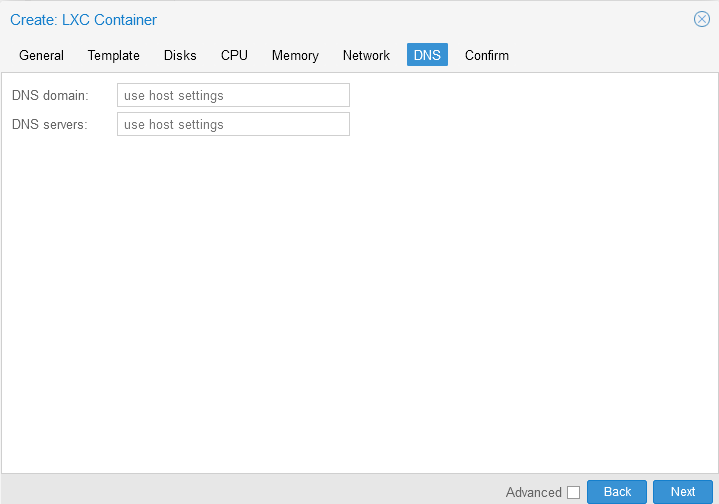
    Configure DNS – For DNS settings, we’ll let the container get its DNS from the host.

    • Click “Next.”

    Start After Creation – On the following screen, make sure to check “Start after created” at the bottom-left corner.

    • Click “Finish.”

    Sources:

    https://www.youtube.com/watch?v=2WjDTUNa-W0

    https://www.kali.org/docs/containers/kalilinux-lxc-images/#overview

  • UNC Path – Still Asking for credentials

    UNC Path – Still Asking for credentials

    I have been working on a project with GED machines at work, and wanted to share my hair-pulling story. Specifically, the machines that students utilize require a mapped drive for establishing a connection to the proctor/administrative machine in the setup.

    During this process, I encountered an unexpected complication. Despite successfully mapping the drive and ensuring that the “remember credentials” option was enabled, the Windows operating system continued to prompt for authentication whenever the application (Delivery Manager) attempted to access the Universal Naming Convention (UNC) path.

    In an attempt to troubleshoot and rectify the issue, I proceeded to incorporate the UNC path and corresponding credentials into the Windows Credential Manager. Despite this effort, the recurring authentication demand persisted.

    The key revelation that ultimately resolved the matter was the realization that utilizing the syntax “AdminMachine\UserName” within the Credential Manager was essential. This seemingly minor adjustment within the Credential Manager proved to be the critical solution. Once this was implemented, the recurring password prompt ceased to show it’s annoying head, effectively resolving the issue.

  • Windows Utility (PowerShell GUI)

    Windows Utility (PowerShell GUI)

    Windows Utility (PowerShell GUI) – By Chris Titus

    This Windows utility seems pretty handy from the testing I have done with it. Go check out Chris’ Website, he has some pretty cool stuff going on https://christitus.com/.

    Here is the GitHub: https://github.com/ChrisTitusTech/winutil

    You can run this Utility Software straight from an Admin PowerShell using:  irm christitus.com/win | iex

    In case you don’t know what these PowerShell commands do (I admit, I was a little shaky on them) here is a breakdown:

    IRM

    The irm command means “Invoke-RestMethod”.

    “The Invoke-RestMethod cmdlet sends HTTP and HTTPS requests to Representational State Transfer (REST) web services that returns richly structured data.” Source

    IEX

    The iex command stands for “Invoke-Expression”.

    “The Invoke-Expression cmdlet evaluates or runs a specified string as a command and returns the results of the expression or command. Without Invoke-Expression , a string submitted at the command line would be returned (echoed) unchanged.”  Source

    What does it do?

    INSTALL

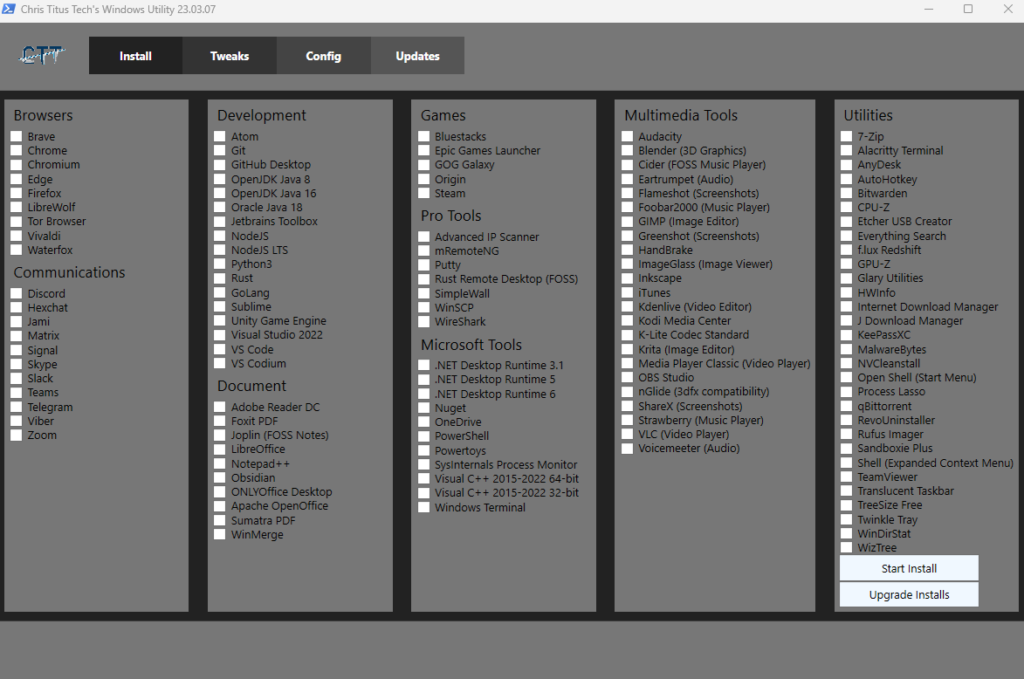
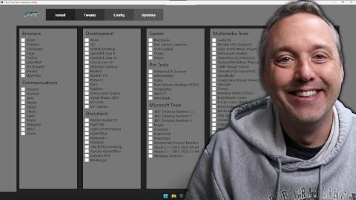
    There are several different options for common installs listed here. The categories of software listed are Browsers, Communications, Development, Document, Games, Pro Tools (Very Useful installs), Microsoft Tools, Multimedia Tools, Utilities. The install area reminds me of ninite.com except with more useful tools for sysadmins.

    The next gem on this tab is the “Upgrade Installs” button. This button will search your currently installed software and check for updates. If there are updates it automatically install them. I ran this and it updated a lot of software for me! Pretty neat!

    TWEAKS

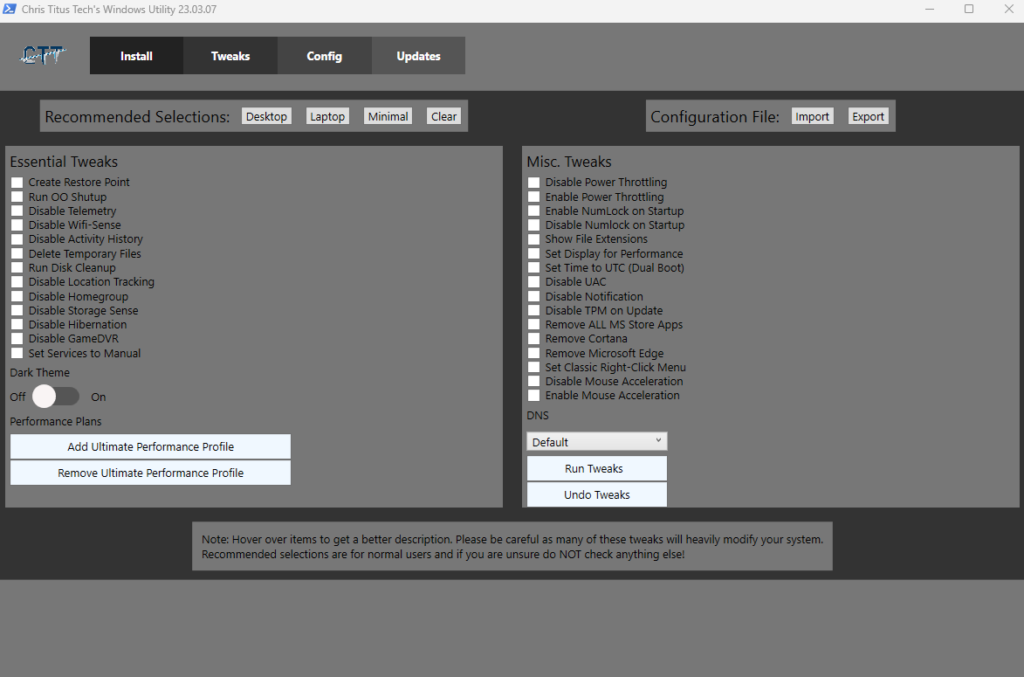
    There are several really good options with the Tweaks tab on the Utility software, most of which I use different PowerShell Scripts to accomplish. Along with all the options there is also a “recommended selections” option that will select the options the Author has deemed to be the best for the system type. Don’t worry about clicking these recommended options, they don’t auto-apply, they just check the options. You still have to manually click the “Run Tweaks” button.

    CONFIG

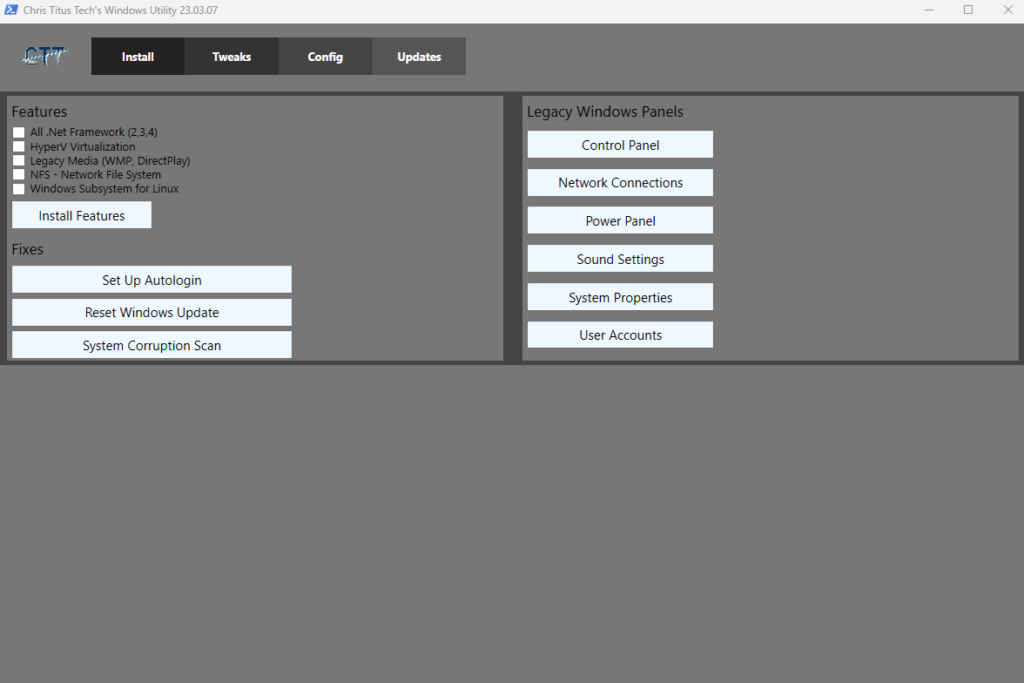
    The Config tab just a few options, ranging from Windows Features installer to Windows Fixes and also includes Legacy Control Panel options.

    UPDATES

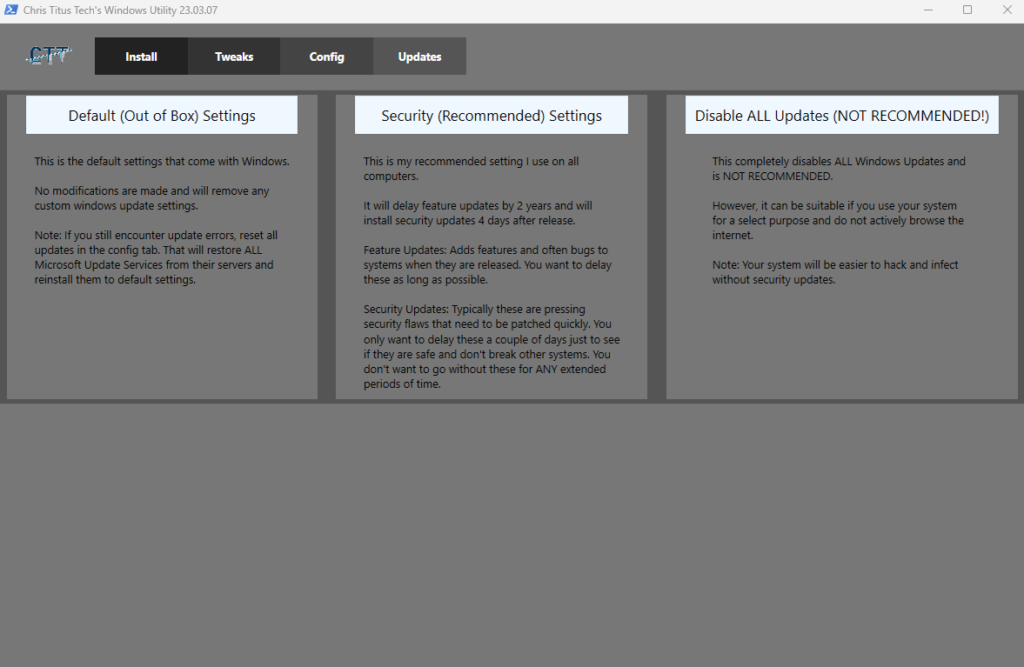
    The Updates tab deals with setting Windows Update options. These update options are limited to “Default OOB (Out of Box)”, Security (Recommended), and Disable all updates.

    Source: One Tool for Everything

    Source: https://christitus.com/one-tool-for-everything/

  • Install Windows 11 Without a Microsoft Account (Local Account)

    Install Windows 11 Without a Microsoft Account (Local Account)

    There are a few different ways to create a local account while installing Windows 11 and I will explain a few (for large enterprise environments you should be using Windows Autopilot). The reason you would want to do this is you don’t want to connect your computer to a Microsoft Account. I personally don’t like having a Microsoft account connected to my computer to use it.

    You will follow Windows 11 install process until you will come to the screen that asks you to add your Microsoft account.

    From here there are three different ways to add a local account:

    Out-of-box experience Bypass

    At the “Add your Microsoft Account” Page you will;

    1. Press Shift+F10
    2. A Command Prompt will appear
    3. Enter this command: OOBE\BYPASSNRO
    4. The computer will restart and the OOBE (out-of-box experience) will start again
    5. Click the “I don’t have internet” option on the “Let’s connect you to a network”
    6. Click the “Continue with limited setup” option.
    7. A screen should appear that says “Who’s going to use this device?”
    8. Enter your Local Username
    9. Select “Next”
    10. Enter your Local Password
    11. Select “Next”

    Releasing IP Address

    At the “Add your Microsoft Account” Page you will;

    1. Press Shift+F10
    2. A Command Prompt will appear
    3. Enter this command: ipconfig /release
    4. Close the Command Prompt window
    5. Click the back arrow (located at the top left of the screen)
    6. A screen should appear that says “Who’s going to use this device?”
    7. Enter your Local Username
    8. Select “Next”
    9. Enter your Local Password
    10. Select “Next”

    Using Fake Email

    At the “Add your Microsoft Account” Page you will;

    1. enter no@notarealdomain.com
    2. Select “Next”
    3. Enter a random password
    4. Select “Sign in”
    5. If this method works you should get to a screen that say “Oops, something went wrong”
    6. Select “Next”
    7. A screen should appear that says “Who’s going to use this device?”
    8. Enter your Local Username
    9. Select “Next”
    10. Enter your Local Password
    11. Select “Next”

    Sources:

    https://pureinfotech.com/bypass-internet-connection-install-windows-11/#:~:text=a%20second%20layout.-,On%20the%20%E2%80%9COops%2C%20you’ve%20lost%20internet%20connection%E2%80%9D,Windows%2011%20and%20press%20Enter.

    https://www.windowscentral.com/how-set-windows-11-without-microsoft-account

    https://www.tomshardware.com/how-to/install-windows-11-without-microsoft-account

  • RustDesk – Open Source Remote Desktop

    RustDesk – Open Source Remote Desktop

    RustDesk is an open source remote desktop software that functions like TeamViewer. You can use it as host-to-client, web-to-client or you can deploy your own open source server instance providing better network and higher security. You can use it on any Operating System as far as I can tell.

  • Python – Simple Calculator

    Python – Simple Calculator

    This is a simple calculator Python project from “100 Days of Code: The Complete Python Pro Bootcamp” I am going through. It took some figuring out but the final project took shape!

    Here is the Github repository if your curious to check it out: https://github.com/susreboot/Simple-Python-Calculator

    Here is the Repl URL: https://replit.com/@systemreboot/100DOC-Calculator-App

    Also here is the code for it if you’d rather not go to Github or Replit.

    main.py

    from art import logo, exit, calculator_logo, warning, improper, exit_error
    import time
    from os import system, name
    import sys
    
    # Function for exiting program
    def clear():
       # for windows
        if name == 'nt':
            _ = system('cls')
    
       # for mac and linux
        else:
            _ = system('clear')
    
    # Assign text colors to variables
    class bcolors:
        HEADER = '\033[95m'
        OKBLUE = '\033[94m'
        OKCYAN = '\033[96m'
        OKGREEN = '\033[92m'
        WARNING = '\033[93m'
        FAIL = '\033[91m'
        ENDC = '\033[0m'
        BOLD = '\033[1m'
        UNDERLINE = '\033[4m'
        RED = '\033[31m'
    # Print the application logo in green 
    print(bcolors.OKGREEN + logo + bcolors.ENDC)
    time.sleep(2)
    clear()
    
    # Mathmatical formulas functions, according to operators
    def addition(n1, n2):
        return n1 + n2
    
    def subtraction(n1, n2):
        return n1 - n2
    
    def division(n1, n2):
        if n2 == 0:
            return "Warning!! You cannot Divide by zero!"
        else:
            return n1 / n2
    
    def multiplication(n1, n2):
        return n1 * n2
    
    # Set dictionary for mathmatical operators 
    operations = {
        "+": addition,
        "-": subtraction,
        "/": division,
        "*": multiplication
    }  
    
    # Calculator function
    def calculator(): 
        print(bcolors.OKGREEN + calculator_logo + bcolors.ENDC)
        print("")
        num1 = float(input("What is the first number? \n > "))
        should_continue = True
        while should_continue:
            operation = input("Choose an operator: \n (+) --Addition \n (-) --Subtraction \n (/) --Division \n (*) --Multiplication \n > ")
            num2 = float(input("What is next number? \n > "))
            calculation_function = operations[operation]
            answer = calculation_function(num1, num2)
            if answer == "Warning!! You cannot Divide by zero!":
                clear()
                print(bcolors.RED + warning + bcolors.ENDC)
                time.sleep(2.5)
                clear()
                calculator()
            clear()
            print(bcolors.OKGREEN + f"The Current Calculation is: {num1} {operation} {num2} = {answer}" + bcolors.ENDC)
            print("")
            # Asks the user what they want to do after the first calculation
            decide_step = input(f"Type 'y' or 'yes' to continue calculating with current value: {bcolors.OKGREEN}{answer}{bcolors.ENDC}, \nType 'n' or 'no' to start a new calculation, \nType 'x' or 'exit' to exit the program: " '\n > ').lower() 
            print("")
            if decide_step == "y" or decide_step == "yes":
                num1 = answer
            elif decide_step == "n" or decide_step == "no":
                should_continue = False
                clear()
                calculator()
            elif decide_step == "x" or decide_step == "exit":
                clear()
                print(exit)
                time.sleep(2)
                clear()
                should_continue = False
                break
            # If anything else is entered other than the input above, the program will display a message and exit
            else: 
                clear()
                print(bcolors.RED + improper + bcolors.ENDC)
                print(bcolors.RED + exit_error + bcolors.ENDC)
                time.sleep(3)
                clear()
                sys.exit()  
                should_continue = False
                break
    
    calculator()

    art.py

    logo = """
     .d8888b.         d8888 888       .d8888b.  888     888 888             d8888 88888888888  .d88888b.  8888888b.               d8888 8888888b.  8888888b.  
    d88P  Y88b       d88888 888      d88P  Y88b 888     888 888            d88888     888     d88P" "Y88b 888   Y88b             d88888 888   Y88b 888   Y88b 
    888    888      d88P888 888      888    888 888     888 888           d88P888     888     888     888 888    888            d88P888 888    888 888    888 
    888            d88P 888 888      888        888     888 888          d88P 888     888     888     888 888   d88P           d88P 888 888   d88P 888   d88P 
    888           d88P  888 888      888        888     888 888         d88P  888     888     888     888 8888888P"           d88P  888 8888888P"  8888888P"  
    888    888   d88P   888 888      888    888 888     888 888        d88P   888     888     888     888 888 T88b           d88P   888 888        888        
    Y88b  d88P  d8888888888 888      Y88b  d88P Y88b. .d88P 888       d8888888888     888     Y88b. .d88P 888  T88b         d8888888888 888        888        
     "Y8888P"  d88P     888 88888888  "Y8888P"   "Y88888P"  88888888 d88P     888     888      "Y88888P"  888   T88b       d88P     888 888        888 
    """
    
    exit = """ 
                ████████ ██   ██  █████  ███    ██ ██   ██ ███████     ███████  ██████  ██████      ██    ██ ███████ ██ ███    ██  ██████  
                   ██    ██   ██ ██   ██ ████   ██ ██  ██  ██          ██      ██    ██ ██   ██     ██    ██ ██      ██ ████   ██ ██       
                   ██    ███████ ███████ ██ ██  ██ █████   ███████     █████   ██    ██ ██████      ██    ██ ███████ ██ ██ ██  ██ ██   ███ 
                   ██    ██   ██ ██   ██ ██  ██ ██ ██  ██       ██     ██      ██    ██ ██   ██     ██    ██      ██ ██ ██  ██ ██ ██    ██ 
                   ██    ██   ██ ██   ██ ██   ████ ██   ██ ███████     ██       ██████  ██   ██      ██████  ███████ ██ ██   ████  ██████  
    
       #       #       ##########   #          #    #     ######           #     #       # # #     #         #       ######      #         #        # #     
    #      ########       ###    #        ##########               ########## #       # # #     #    ##########              ########   #         #   #  
    ##    #       #      #     ##########   #    #   ##########        #    #        #         #          #     ##########  #    #    ########## # # #   
    # #  #      ##      #        #     #         #        #            #    #       #         #           #          #     #    #       #     #     #    
    #  #      ##       #         #              #         #           #     #     ##        ##           #           #         #        #          # #   
    #       ##        #          #             #         #           #   # #    ##        ##            #           #         #         #         #   #  
    #     ##         #            ######     #         ##           #     #   ##        ##            ##          ##         #           ######        # 
                                       
    """
    
    calculator_logo = """
     _____________________
    |  _________________  |
    | | READT SET GO 0. | |
    | |_________________| |
    |  ___ ___ ___   ___  |
    | | 7 | 8 | 9 | | + | |
    | |___|___|___| |___| |
    | | 4 | 5 | 6 | | - | |
    | |___|___|___| |___| |
    | | 1 | 2 | 3 | | x | |
    | |___|___|___| |___| |
    | | . | 0 | = | | / | |
    | |___|___|___| |___| |
    |_____________________|
    """
    
    warning = """
            _____                _____       _____ _____   ______   ____ _____   ______        _____          
           |\    \   _____   ___|\    \  ___|\    |\    \ |\     \ |    |\    \ |\     \   ___|\    \         
           | |    | /    /| /    /\    \|    |\    \\    \| \     \|    |\\    \| \     \ /    /\    \        
           \/     / |    |||    |  |    |    | |    \|    \  \     |    | \|    \  \     |    |  |____|       
           /     /_  \   \/|    |__|    |    |/____/ |     \  |    |    |  |     \  |    |    |    ____       
          |     // \  \   \|    .--.    |    |\    \ |      \ |    |    |  |      \ |    |    |   |    |      
          |    |/   \ |    |    |  |    |    | |    ||    |\ \|    |    |  |    |\ \|    |    |   |_,  |      
          |\ ___/\   \|   /|____|  |____|____| |____||____||\_____/|____|  |____||\_____/|\ ___\___/  /|      
          | |   | \______/ |    |  |    |    | |    ||    |/ \|   ||    |  |    |/ \|   || |   /____ / |      
           \|___|/\ |    | |____|  |____|____| |____||____|   |___||____|  |____|   |___|/\|___|    | /       
              \(   \|____|/  \(      )/   \(     )/    \(       )/   \(      \(       )/    \( |____|/        
               '      )/      '      '     '     '      '       '     '       '       '      '   )/      
                
           _____                        _     _____  _       _     _        _             ______              
          / ____|                      | |   |  __ \(_)     (_)   | |      | |           |___  /              
         | |     __ _ _ __  _ __   ___ | |_  | |  | |___   ___  __| | ___  | |__  _   _     / / ___ _ __ ___  
         | |    / _` | '_ \| '_ \ / _ \| __| | |  | | \ \ / | |/ _` |/ _ \ | '_ \| | | |   / / / _ | '__/ _ \ 
         | |___| (_| | | | | | | | (_) | |_  | |__| | |\ V /| | (_| |  __/ | |_) | |_| |  / /_|  __| | | (_) |
          \_____\__,_|_| |_|_| |_|\___/ \__| |_____/|_| \_/ |_|\__,_|\___| |_.__/ \__, | /_____\___|_|  \___/ 
                                                                                   __/ |                      
                                                                                  |___/     
                                                                            
    """
    
    improper = """
     ██▓███▄ ▄███▓██▓███  ██▀███  ▒█████  ██▓███ ▓█████ ██▀███      ▄████▄  ▒█████  ███▄ ▄███▓███▄ ▄███▓▄▄▄      ███▄    █▓█████▄ 
    ▓██▓██▒▀█▀ ██▓██░  ██▓██ ▒ ██▒██▒  ██▓██░  ██▓█   ▀▓██ ▒ ██▒   ▒██▀ ▀█ ▒██▒  ██▓██▒▀█▀ ██▓██▒▀█▀ ██▒████▄    ██ ▀█   █▒██▀ ██▌
    ▒██▓██    ▓██▓██░ ██▓▓██ ░▄█ ▒██░  ██▓██░ ██▓▒███  ▓██ ░▄█ ▒   ▒▓█    ▄▒██░  ██▓██    ▓██▓██    ▓██▒██  ▀█▄ ▓██  ▀█ ██░██   █▌
    ░██▒██    ▒██▒██▄█▓▒ ▒██▀▀█▄ ▒██   ██▒██▄█▓▒ ▒▓█  ▄▒██▀▀█▄     ▒▓▓▄ ▄██▒██   ██▒██    ▒██▒██    ▒██░██▄▄▄▄██▓██▒  ▐▌██░▓█▄   ▌
    ░██▒██▒   ░██▒██▒ ░  ░██▓ ▒██░ ████▓▒▒██▒ ░  ░▒████░██▓ ▒██▒   ▒ ▓███▀ ░ ████▓▒▒██▒   ░██▒██▒   ░██▒▓█   ▓██▒██░   ▓██░▒████▓ 
    ░▓ ░ ▒░   ░  ▒▓▒░ ░  ░ ▒▓ ░▒▓░ ▒░▒░▒░▒▓▒░ ░  ░░ ▒░ ░ ▒▓ ░▒▓░   ░ ░▒ ▒  ░ ▒░▒░▒░░ ▒░   ░  ░ ▒░   ░  ░▒▒   ▓▒█░ ▒░   ▒ ▒ ▒▒▓  ▒ 
     ▒ ░  ░      ░▒ ░      ░▒ ░ ▒░ ░ ▒ ▒░░▒ ░     ░ ░  ░ ░▒ ░ ▒░     ░  ▒    ░ ▒ ▒░░  ░      ░  ░      ░ ▒   ▒▒ ░ ░░   ░ ▒░░ ▒  ▒ 
     ▒ ░      ░  ░░        ░░   ░░ ░ ░ ▒ ░░         ░    ░░   ░    ░       ░ ░ ░ ▒ ░      ░  ░      ░    ░   ▒     ░   ░ ░ ░ ░  ░ 
     ░        ░             ░        ░ ░            ░  ░  ░        ░ ░         ░ ░        ░         ░        ░  ░        ░   ░    
                                                                   ░                                                       ░      
                                                                                                                                  
    """
    
    exit_error = """
    ██╗    █████████╗  █████████████████╗   ██╗██████╗     ██████╗██████╗ ██████╗ ██████╗██████╗ █████╗███╗   ███╗    ██╗
    ██║    ██╔════╚██╗██╔██╚══██╔══██████╗  ████╔════╝     ██╔══████╔══████╔═══████╔════╝██╔══████╔══██████╗ ████║    ██║
    ██║    █████╗  ╚███╔╝██║  ██║  ████╔██╗ ████║  ███╗    ██████╔██████╔██║   ████║  █████████╔█████████╔████╔██║    ██║
    ╚═╝    ██╔══╝  ██╔██╗██║  ██║  ████║╚██╗████║   ██║    ██╔═══╝██╔══████║   ████║   ████╔══████╔══████║╚██╔╝██║    ╚═╝
    ██╗    █████████╔╝ ████║  ██║  ████║ ╚████╚██████╔╝    ██║    ██║  ██╚██████╔╚██████╔██║  ████║  ████║ ╚═╝ ██║    ██╗
    ╚═╝    ╚══════╚═╝  ╚═╚═╝  ╚═╝  ╚═╚═╝  ╚═══╝╚═════╝     ╚═╝    ╚═╝  ╚═╝╚═════╝ ╚═════╝╚═╝  ╚═╚═╝  ╚═╚═╝     ╚═╝    ╚═╝
        
    """
    
  • Mapping Sysinternals to a Drive in Windows

    Mapping Sysinternals to a Drive in Windows

    Getting access to Sysinternals quickly can be handy in any Windows environment.

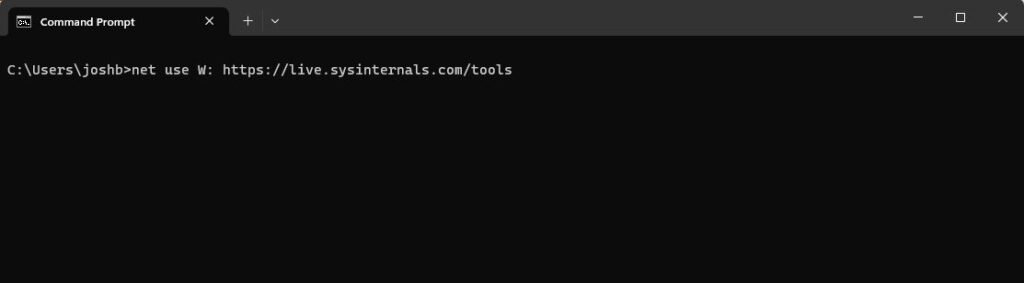
    You can add Sysinternals as a mapped drive in Windows by using this command at the Command Prompt (replace the drive letter “W:” with the drive letter of your choosing):

    > net use W: https://live.sysinternals.com/tools

  • Moving ESXI (6.5) Virtual Machines to Proxmox

    Moving ESXI (6.5) Virtual Machines to Proxmox

    Steps to achieve migration (TL;DR)

    Export Existing VM’s from ESXI (6.5)

    Login to ESXI

    Go to Virtual Machines on the left

    Find your VM you are exporting

    Right click the VM select Power > Power Off

    Right click on the VM again and select Export

    Select Export on the Export screen that pops up

    This will Download the vmdk, ovf and mf files to your machine

    Be patient this will take some time for larger VMs

    Convert vmdk files to qcow2

    I completed the conversion to qcow2 on Windows (it’s probably easier to do this on Linux)

    Got to this address and download qemu-img.zip (https://cloudbase.it/qemu-img-windows/):

    Unzip this folder to your Desktop

    Copy your vmdk into this folder (so that the qemu-img.exe is in the same folder as your vmdk)

    Open the Command Line and navigate to the folder we just unzipped (or type cmd into the address bar in explorer (and hit Enter) – this will open CMD prompt to that directory)

    Use this command to convert the vmdk to qcow2:

    > qemu-img.exe convert -f vmdk -O qcow2 “YOURVMDKNAME.vmdk” YOURVMDKNAME.qcow2

    NOTE 1: You can download the vmdk from the ESXI storage datastore too (go to storage and then to your datastore, then “Datastore Browser”.). Downloading it this way you will need to convert using the raw switch (since this downloads a raw vmdk file).

    #> qemu-img.exe convert -f raw -O qcow2 “YOURVMDKNAME-flat.vmdk” YOURVMDKNAME.qcow2

    NOTE 2: You can check what format a vmdk is by using the following command:

    > qemu-img.exe info YOURVMDKNAME.vmdk

    Decommission ESXI Server and install Proxmox

    If you are using the same server hardware you can now decommission ESXI and install Proxmox. I use the latest Proxmox ISO to install to my lab server.

    Here is the link to the latest Proxmox distros: https://www.proxmox.com/en/downloads/category/iso-images-pve

    Import qcow2 images

    **First thing we want to do is make a folder to hold the migrated qcow2 files temporarily. Login to your Proxmox server and access the shell. Use this command to make directory to copy to: mkdir /var/lib/vz/template/qemu (note: You don’t have to use sudo here because you are logged in as root)*****

    I use Powershell with the scp (Secure Copy) command to move the qcow2 files to the Proxmox server. Use this command to copy using scp:

    > scp YOURVMDKNAME.qcow2 root@PROXMOX_IP_ADDRESS:/var/lib/vz/template/qemu

    Test VMs making sure everything works (including connection to SAN)

    I am using a SAN so I had to make sure connections works afterword’s. I tested by installing Proxmox onto my ESXI as a VM and followed all the steps above. After I completed all the steps I booted the VM in Proxmox. I thought I was doing something wrong with Proxmox because I could not get the VM to communicate with the network (only able to ping the host (Proxmox) and not my gateway). It turns out since I was using nested vitalization I had to turn on Promiscuous mode on the VM Network in ESXI. After fixing this I was able to fully test the migrated qcow2 VM. Everything worked! I exported/converted all my VMs and decommissioned ESXI, installed Proxmox and followed the same steps again. I am now fully migrated to Proxmox.